The game loads when you press Play · press “Play Now” inside the game if it asks.
Virtual Bart (World)
Virtual Bart
Virtual Bart on Genesis
- SEGA Genesis
- Platformer
- 5· 0 votes
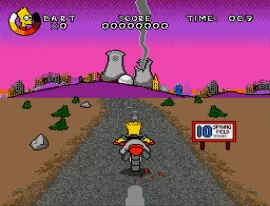
Virtual Bart was released for the Sega Genesis in 1994, developed by Sculptured Software and published by Acclaim Entertainment. It is a licensed game based on The Simpsons, specifically focusing on Bart Simpson entering a virtual reality world. This version is labeled as World, encompassing multiple region releases.
In the game, you guide Bart through a series of side-scrolling levels themed around classic Simpsons scenarios. The challenge is to survive each virtual reality simulation by jumping over obstacles, avoiding enemies, and reaching the end point. Bart has a health meter and can collect items for bonuses. The controls are typical of a Genesis platformer.
Virtual Bart is not a masterpiece but offers a fun, lighthearted experience for Simpsons fans of the era. Its colorful graphics and recognizable characters give it nostalgia value. Compared to other Genesis platformers, it is straightforward and short, making it a decent pick for a quick play session today.
GAME INFO
- Platform
- SEGA Genesis
- Genre
- Platformer
- Developer
- Sculptured Software
- Released
- 1994
- Players
- 1
- Region
- USA, Europe
How to play Virtual Bart online
When you start Virtual Bart, you are greeted with a title screen. Press Enter to begin. The main menu lets you select a level or start from the first stage. Bart enters a virtual world where each level presents a different theme from the show.
Your goal is to reach the end of each stage by running and jumping over gaps, enemies, and traps. Bart can attack some threats using the B button. Keep an eye on his health bar; collecting items like donuts restores it. If you lose all health, you restart from the last checkpoint or the level beginning. The game does not have a save feature, but you may be able to continue after a game over.
Take your time to learn enemy patterns and platform layouts. The game is short, so persisting through failures will let you see all the levels within an hour or two.
CONTROLS
Controls
- Arrow Keys: D-Pad / Movement
- X: A button
- S: B button
- Z: C button
- A: X button (6-button pad)
- Q: Y button (6-button pad)
- E: Z button (6-button pad)
- Enter: Start / Mode
Virtual Bart FAQ
Who developed Virtual Bart?
Sculptured Software handled development of Virtual Bart for the Genesis. They were a frequent partner of Acclaim Entertainment.
Which regions was Virtual Bart released in?
The game saw release in North America and Europe. A World ROM exists that may include both region data.
Is Virtual Bart exclusive to SEGA Genesis or did it appear on other systems?
Virtual Bart was not exclusive to the Genesis. It also appeared on the Super Nintendo Entertainment System and Nintendo's Game Boy handheld.
You may also like
All SEGA Genesis games
GAME INFO
- Platform
- SEGA Genesis
- Genre
- Platformer
- Developer
- Sculptured Software
- Released
- 1994
- Players
- 1
- Region
- USA, Europe
COMMENTS (0)
No comments yet. Be the first to share your thoughts.