
The game loads when you press Play · press “Play Now” inside the game if it asks.
Sonic - Project Revenge (SHC '24 Demo)
Sonic - Project Revenge
Sonic - Project Revenge: Genesis Platformer
- SEGA Genesis
- Platformer
- Demo
- 5· 0 votes
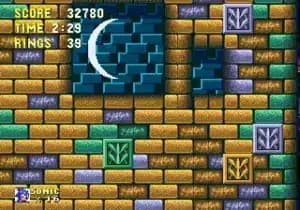
In this demo, you control Sonic the Hedgehog as he storms through enemy-filled zones at high speed. The core mechanics are faithful to the Genesis titles: run, jump, spin-dash, and collect rings while avoiding hazards and defeating badniks. The level design appears focused on direct, aggressive paths, fitting the "revenge" theme. Only a few stages are available in this demo build, likely intended to showcase the concept and engine.
For Sonic fans who follow the hacking scene, Project Revenge offers a glimpse of a promising fan effort with a darker tone. It is a short but polished experience that demonstrates what hobbyist developers can achieve with the Genesis hardware. If you enjoy playing through creative Sonic hacks and demos, this is worth a quick run.
GAME INFO
- Platform
- SEGA Genesis
- Genre
- Platformer
- Players
- 1
- Version
- SHC '24 Demo
How to play Sonic - Project Revenge online
Start the demo by pressing Enter to get past any title screen. You control Sonic with the Arrow Keys for movement. Hold the D-Pad left or right to build speed, and press X (A) to jump. Use the spin-dash by pressing down, then X while moving. The goal is to reach the end of each act, often marked by a large signpost or boss area. Collect rings to protect yourself from enemies and spikes - losing all rings means death. The demo likely includes a handful of acts; once completed, the demo may loop or show a congratulations message.
Explore each stage thoroughly to find hidden paths and power-ups. The core loop is straightforward: run fast, avoid damage, and defeat robots. There are no save options in this demo, so plan to finish it in one sitting. If you get stuck, note that some obstacles require careful jumps or using the spin-dash to break through walls. The demo is light on story; the focus is on action.
CONTROLS
Controls
- Arrow Keys: D-Pad / Movement
- X: A button
- S: B button
- Z: C button
- A: X button (6-button pad)
- Q: Y button (6-button pad)
- E: Z button (6-button pad)
- Enter: Start / Mode
Sonic - Project Revenge FAQ
Is there anything iconic or memorable about Sonic - Project Revenge?
As a contest entry for the 2024 Sonic Hacking Contest, it represents a fan effort to create a darker, revenge-themed Sonic experience. The demo is notable for its original level layout and tone, which deviate from typical classic Sonic style.
Which regions was Sonic - Project Revenge released in?
This is a digital-only fan demo, not an official commercial release, so it has no assigned region. It is available worldwide through online archives like retrogames.cc and the contest website.
Can players save progress in Sonic - Project Revenge?
The demo does not include save functionality. As a limited build intended for contest evaluation, it is designed to be completed in a single play session without saving.
You may also like
All SEGA Genesis games









GAME INFO
- Platform
- SEGA Genesis
- Genre
- Platformer
- Players
- 1
- Version
- SHC '24 Demo
COMMENTS (0)
No comments yet. Be the first to share your thoughts.