The game loads when you press Play · press “Play Now” inside the game if it asks.
Sesame Street Counting Cafe (USA)
Sesame Street Counting Cafe
Sesame Street Counting Cafe - Educational Classic
- SEGA Genesis
- Educational
- 5· 0 votes
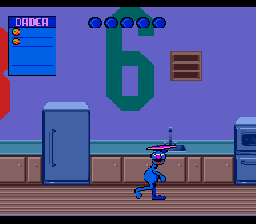
The game puts players in a cafe setting where they help characters like Big Bird and Elmo count items and complete simple number challenges. Each activity involves recognizing numerals or matching quantities, with the goal of serving orders correctly. The interface is menu-driven and built around a friendly, slow-paced structure meant to reinforce counting from one to ten or so, using visual cues and positive feedback.
For retro collectors, this is a curiosity more than a must-play, but it captures a specific era of edutainment on cartridge. The graphics are bright and colorful, leaning into Sesame Street's established aesthetic, and the gameplay is gentle enough for very young children. Compared to later educational games on CD-based systems, it's primitive, but its place in the Genesis library as one of the few official Sesame Street games makes it a neat historical piece.
GAME INFO
- Platform
- SEGA Genesis
- Genre
- Educational
- Players
- 1
- Region
- USA
How to play Sesame Street Counting Cafe online
Getting Started
When you boot up Counting Cafe, you will be greeted by a title screen featuring Sesame Street characters. Press Enter to start. The game then presents a simple menu where you choose which character to play with or which counting activity to try. Use the Arrow Keys to highlight options and X to confirm.
The core loop is straightforward: a character asks you to count a certain number of items - cookies, cups, or other cafe goods. You move a cursor or select objects by pressing X. After each correct count, you earn praise and move to the next challenge. There is no time limit or failure state; the game patiently guides you.
New players should know that the game is purely about counting, with no text-heavy instructions. The controls are minimal: navigate with the D-Pad and confirm with X. If you get stuck, pressing S will cancel or go back. There is no pause feature, but the game encourages exploration without pressure.
CONTROLS
Controls
- Arrow Keys: D-Pad / Movement
- X: A button
- S: B button
- Z: C button
- A: X button (6-button pad)
- Q: Y button (6-button pad)
- E: Z button (6-button pad)
- Enter: Start / Mode
Sesame Street Counting Cafe FAQ
Does Sesame Street Counting Cafe have a multiplayer or co-op mode?
No, the game is designed as a single-player experience. Each session focuses on one child working through the counting activities at their own pace.
Is Sesame Street Counting Cafe exclusive to SEGA Genesis or did it appear on other systems?
This title only saw release on the Sega Genesis in North America. It was not ported to other consoles or home computers during its original run.
In what year was Sesame Street Counting Cafe originally released?
The exact release year is not widely documented. Most sources place it in the early 1990s, but a precise date is not confirmed.
You may also like
All SEGA Genesis games


GAME INFO
- Platform
- SEGA Genesis
- Genre
- Educational
- Players
- 1
- Region
- USA
COMMENTS (0)
No comments yet. Be the first to share your thoughts.