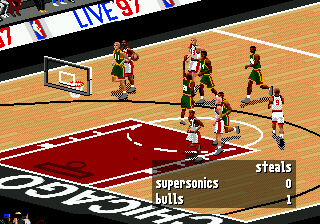
The game loads when you press Play · press “Play Now” inside the game if it asks.
NBA Live 97 (USA, Europe)
NBA Live 97
About NBA Live 97
- SEGA Genesis
- Sports
- 5· 0 votes
You take control of any NBA team from the 1996-97 season and play through full five-on-five games. The core loop involves selecting plays, passing, dribbling, shooting, and defending using the D-pad and three-button layout typical of Genesis sports games. Key mechanics include an isometric camera angle, a basic playbook for offense and defense, and player-specific attributes that affect performance. Games can be played exhibition-style or as part of a full season mode.
Today, NBA Live '97 holds up as a solid representation of mid-90s basketball gaming on 16-bit hardware. It's not as deep as later entries or the PlayStation version, but it captures the feel of the era with crisp sprites, smooth animation, and a decent challenge. If you're into retro sports games or want to see how the franchise evolved, this is a worthwhile play - just don't expect the complexity of modern sims.
GAME INFO
- Platform
- SEGA Genesis
- Genre
- Sports
- Publisher
- Electronic Arts
- Developer
- EA Sports
- Released
- 1996
- Players
- 1-2
- Region
- USA, Europe
More NBA Live Games
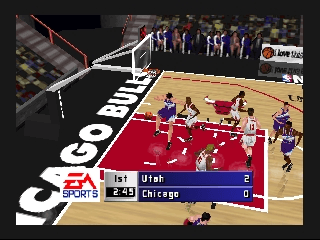
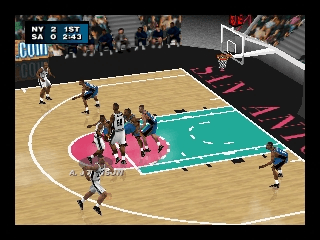
Ready for another round? Explore more NBA Live games and console editions. Choose a game below to play it on its own page.
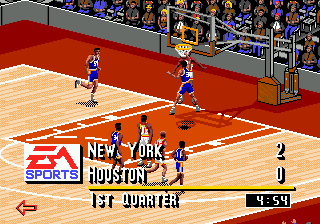
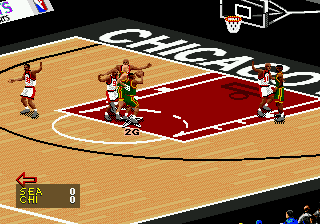
How to play NBA Live 97 online
Getting Started
First, choose a game mode from the title screen - Exhibition is the simplest way to start. You'll then select your team and an opponent. After tip-off, you control the player closest to the ball. Use the D-pad to move and the A button to jump for rebounds or blocks, B to pass or steal, and C (mapped to Y button by default) to shoot. The game uses a simple icon-based play calling system - press the appropriate button while on offense to select a play from a menu that appears at the bottom of the screen.
On defense, you can switch players manually with the A button and contest shots by jumping. The computer AI is decent but predictable - you can exploit fast breaks by passing ahead. The season mode lets you play through a full 82-game schedule, track stats, and make trades. There's no tutorial, so expect a learning curve with the timing of shots and passes. If you get stuck, try the practice mode to get used to controls.
CONTROLS
Controls
- Arrow Keys: D-Pad / Movement
- X: A button
- S: B button
- Z: C button
- A: X button (6-button pad)
- Q: Y button (6-button pad)
- E: Z button (6-button pad)
- Enter: Start / Mode
NBA Live 97 FAQ
Does NBA Live 97 have a multiplayer or co-op mode?
Two players can compete head-to-head using the same controller or a second controller plugged into the Genesis. There is no cooperative mode; it is strictly versus play.
Is NBA Live 97 exclusive to SEGA Genesis or did it appear on other systems?
NBA Live '97 was released on multiple platforms, including the SEGA Genesis, Super Nintendo, PlayStation, Sega Saturn, and PC. The Genesis version is one of several contemporary ports.
Who developed NBA Live 97?
The development team for the Genesis version is not widely documented, but the game was published by EA Sports. Specific studio credits for this port are not commonly listed in standard retro gaming references.
You may also like
All SEGA Genesis games



GAME INFO
- Platform
- SEGA Genesis
- Genre
- Sports
- Publisher
- Electronic Arts
- Developer
- EA Sports
- Released
- 1996
- Players
- 1-2
- Region
- USA, Europe
COMMENTS (0)
No comments yet. Be the first to share your thoughts.