The game loads when you press Play · press “Play Now” inside the game if it asks.
Blaster Master 2 (USA)
Blaster Master 2
Getting to Know Blaster Master 2
- SEGA Genesis
- Platformer
- Unlicensed
- 5· 0 votes
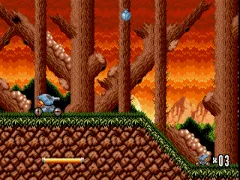
Blaster Master 2 is an unlicensed sequel to the original NES Blaster Master, released for the Sega Genesis in North America. This cartridge was built and sold without the consent of the original developers, making it a curious piece of retro gaming history. It arrived during the early 90s when the Genesis was building its library, but it never received the official blessing of Sunsoft or the original team.
The player controls a character who moves through side-scrolling levels, blasting enemies and avoiding hazards. While the original Blaster Master combined overhead and side-scrolling segments, this Genesis follow-up sticks to a more straightforward platforming and shooting formula. You fight through various stages, collect power-ups, and defeat bosses to progress, though the exact mechanics are not widely documented.
For collectors and fans of unlicensed titles, Blaster Master 2 stands as a peculiar artifact. It lacks the polish of official releases, but its unauthorized nature gives it a certain underground appeal. If you enjoy tracking down oddball Genesis cartridges or want to see how a classic NES series was unofficially adapted to a new platform, this is worth a look.
GAME INFO
- Platform
- SEGA Genesis
- Genre
- Platformer
- Players
- 1
- Region
- USA
More Blaster Master Games
Ready for another round? Explore more Blaster Master games and console editions. Choose a game below to play it on its own page.
How to play Blaster Master 2 online
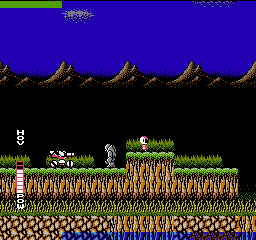
This game is a side-scrolling platformer. When you start, you will see a title screen and can press Enter to begin. Move your character with the Arrow Keys, jump with X, and shoot with S. Blast enemies that appear from both sides while avoiding their attacks and environmental hazards.
The core loop is simple: navigate each stage from left to right, defeat enemies, and reach the end. Some stages may have bosses that require multiple hits. There is no save feature, so you must finish the game in one session or rely on passwords if they are implemented. Keep an eye on your health and collect any power-ups that appear.
CONTROLS
Controls
- Arrow Keys: D-Pad / Movement
- X: A button
- S: B button
- Z: C button
- A: X button (6-button pad)
- Q: Y button (6-button pad)
- E: Z button (6-button pad)
- Enter: Start / Mode
Blaster Master 2 FAQ
Can players save progress in Blaster Master 2?
Most documentation indicates no internal save battery is present. Progress was likely tracked through a password system or lost when the console was turned off, as was common for many Genesis titles of the era.
Is Blaster Master 2 exclusive to SEGA Genesis or did it appear on other systems?
This game was released only for the Sega Genesis in North America. There are no known ports or versions for other platforms.
Does Blaster Master 2 have a multiplayer or co-op mode?
Blaster Master 2 is a single-player only experience. No multiplayer or cooperative modes are included in the cartridge.
You may also like
All SEGA Genesis games
GAME INFO
- Platform
- SEGA Genesis
- Genre
- Platformer
- Players
- 1
- Region
- USA
COMMENTS (0)
No comments yet. Be the first to share your thoughts.