CHOOSE A VERSION
3 versions · same consoleChoose an original release, regional version, revision, bootleg or clearly labelled ROM hack/mod, then press Play. Hacks may change the gameplay. Switching versions restarts the player.
Selected: Default · USA · USA
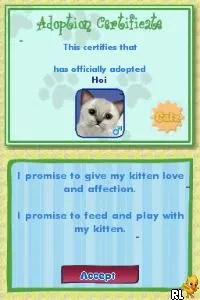
The game loads when you press Play · press “Play Now” inside the game if it asks.
Catz (USA)
Catz
Catz - Simulation Classic
- Nintendo DS
- Simulation
- 5· 0 votes
GAME INFO
- Platform
- Nintendo DS
- Genre
- Simulation
- Publisher
- Ubisoft
- Developer
- Yuke's
- Players
- 1
- Region
- USA
How to play Catz online
CONTROLS
Controls
- Arrow Keys — D-Pad / Movement
- X — A button
- S — B button
- Z — Y button
- A — X button
- Q — L shoulder
- E — R shoulder
- Enter — Start
- V — Select
Catz FAQ
What makes Catz stand out among Nintendo DS titles of its era?
The game offers a unique pet simulation experience, allowing players to engage in cat care mechanics that were popular during the DS era. Its focus on interaction and customization appeals to a niche audience looking for casual gameplay.
Roughly how long does it take to finish Catz?
The game is designed for open-ended play, so there isn't a definitive finish time. Players can enjoy it for as long as they wish, typically engaging in short sessions.
Who developed Catz?
The developer of this title is not widely documented, which makes it difficult to provide a specific name. The game falls under the umbrella of pet simulation titles popular during the Nintendo DS era.
You may also like
All Nintendo DS games

GAME INFO
- Platform
- Nintendo DS
- Genre
- Simulation
- Publisher
- Ubisoft
- Developer
- Yuke's
- Players
- 1
- Region
- USA
COMMENTS (0)
No comments yet. Be the first to share your thoughts.