CHOOSE A VERSION
4 versions · same consoleChoose an original release, regional version, revision, bootleg or clearly labelled ROM hack/mod, then press Play. Hacks may change the gameplay. Switching versions restarts the player.
Selected: Default · USA · En,Fr,Es · USA
The game loads when you press Play · press “Play Now” inside the game if it asks.
Picross DS (USA) (En,Fr,Es)
Picross DS
Picross DS Overview
- Nintendo DS
- Puzzle
- 5· 0 votes
Picross DS is a puzzle game released for the Nintendo DS in 2007. Developed by Jupiter and published by Nintendo, it is part of the Picross series that has been popular among puzzle enthusiasts. The game was released in multiple languages, including English, French, and Spanish, making it accessible to a wider audience.
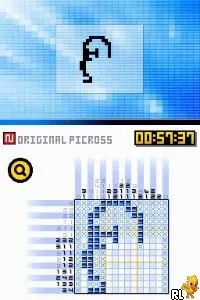
In Picross DS, players engage in a grid-based puzzle where they use numerical clues to fill in squares and reveal hidden images. Each row and column has a set of numbers indicating how many consecutive squares should be filled in. The core gameplay involves logic and deduction, as players must interpret the clues correctly while managing the grid’s constraints to complete the picture.
This title is worth trying today for anyone who enjoys brain-teasing puzzles. Its straightforward mechanics and charming presentation make it a great entry point for new players, while seasoned fans of the genre will appreciate the challenge it provides. Compared to other titles from its era, Picross DS stands out with its unique blend of logic and artistry, making it a beloved choice for puzzle game fans.
GAME INFO
- Platform
- Nintendo DS
- Genre
- Puzzle
- Publisher
- Nintendo
- Developer
- Jupiter
- Released
- 2007
- Players
- 1
- Region
- USA
How to play Picross DS online
To get started in Picross DS, choose a puzzle from the menu and familiarize yourself with the grid layout. The numbers along the edges of the grid indicate how many squares need to be filled in for that row or column. Begin by analyzing the numbers and filling in squares according to the clues, using logic to deduce which squares to mark.
As you progress, keep track of the numbers and adjust your strategy based on the clues provided. If you fill in a square correctly, it will become shaded, while incorrect guesses can lead to penalties. The goal is to reveal the image hidden within the grid while adhering to the numerical clues, creating a satisfying puzzle experience.
CONTROLS
Controls
- Arrow Keys — D-Pad / Movement
- X — A button
- S — B button
- Z — Y button
- A — X button
- Q — L shoulder
- E — R shoulder
- Enter — Start
- V — Select
Picross DS FAQ
Who developed Picross DS?
The game was developed by Jupiter, a company known for its work on the Picross series and other puzzle titles.
Roughly how long does it take to finish Picross DS?
The time to finish can vary greatly depending on the player's skill level, but it typically takes several hours to complete all the puzzles in the game.
In what year was Picross DS originally released?
Picross DS was originally released in 2007, contributing to the popularity of the Picross franchise on the Nintendo DS.
You may also like
All Nintendo DS games





GAME INFO
- Platform
- Nintendo DS
- Genre
- Puzzle
- Publisher
- Nintendo
- Developer
- Jupiter
- Released
- 2007
- Players
- 1
- Region
- USA
COMMENTS (0)
No comments yet. Be the first to share your thoughts.