CHOOSE A VERSION
2 versions · same consoleChoose an original release, regional version, revision, bootleg or clearly labelled ROM hack/mod, then press Play. Hacks may change the gameplay. Switching versions restarts the player.
Selected: Default · Japan · Japan
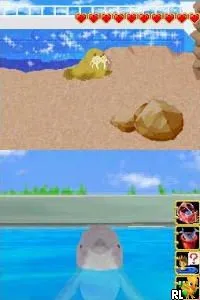
The game loads when you press Play · press “Play Now” inside the game if it asks.
I Love Dolphin (Japan)
I Love Dolphin
Inside I Love Dolphin
- Nintendo DS
- Simulation
- 5· 0 votes
GAME INFO
- Platform
- Nintendo DS
- Genre
- Simulation
- Players
- 1
- Region
- Japan
How to play I Love Dolphin online
To get started with I Love Dolphin, select your game mode from the main menu, which is in Japanese. You’ll likely want to begin with the initial tutorial or training mode, which will introduce you to the various activities available. The core gameplay loop revolves around performing tasks that involve caring for dolphins, which can include feeding, training, and playing with them.
As you progress, you'll unlock new interactions and mini-games. Pay attention to the prompts and visual cues as you navigate through the menus, since they are in Japanese. Familiarizing yourself with the controls early on will enhance your experience, allowing you to enjoy the simulation without frustration.
CONTROLS
Controls
- Arrow Keys — D-Pad / Movement
- X — A button
- S — B button
- Z — Y button
- A — X button
- Q — L shoulder
- E — R shoulder
- Enter — Start
- V — Select
I Love Dolphin FAQ
Is I Love Dolphin considered easy to pick up or challenging?
The gameplay is relatively straightforward, making it easy for new players to pick up. However, mastering all the interactions and mini-games may require some practice.
Which regions was I Love Dolphin released in?
This title was released exclusively in Japan, which means it may not be as accessible to non-Japanese speakers due to its language barrier.
Is I Love Dolphin exclusive to Nintendo DS or did it appear on other systems?
I Love Dolphin is exclusive to the Nintendo DS and has not been released on any other platforms.
You may also like
All Nintendo DS games

GAME INFO
- Platform
- Nintendo DS
- Genre
- Simulation
- Players
- 1
- Region
- Japan
COMMENTS (0)
No comments yet. Be the first to share your thoughts.