CHOOSE A VERSION
2 versions · same consoleChoose an original release, regional version, revision, bootleg or clearly labelled ROM hack/mod, then press Play. Hacks may change the gameplay. Switching versions restarts the player.
Selected: Default · USA · En,Fr,Es · USA
The game loads when you press Play · press “Play Now” inside the game if it asks.
Discovery Kids - Pony Paradise (USA) (En,Fr,Es)
Discovery Kids - Pony Paradise
Inside Discovery Kids - Pony Paradise
- Nintendo DS
- Simulation
- 5· 0 votes
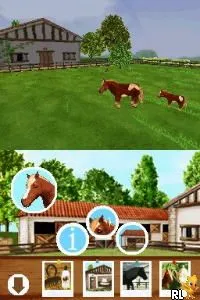
Discovery Kids - Pony Paradise is a family-friendly simulation game released for the Nintendo DS. It was developed around the mid-2000s and is part of a series aimed at younger audiences. Players can enjoy this title in English, French, and Spanish, making it accessible to a broader demographic.
In the game, players engage in various activities centered around caring for and interacting with virtual ponies. This includes grooming, feeding, and playing with the ponies, which aligns with the genre conventions of pet simulation games. The gameplay is structured to be straightforward, catering to children by encouraging creativity and nurturing skills without complex mechanics.
Though it may not be a blockbuster title, Discovery Kids - Pony Paradise holds a special place for collectors and families. It offers a nostalgic trip for those who grew up with simulation games on the DS. While it may lack the depth of more prominent titles, its charm lies in its simplicity and the joy it brings to younger players, making it a worthwhile experience for those interested in this niche genre.
GAME INFO
- Platform
- Nintendo DS
- Genre
- Simulation
- Players
- 1
- Region
- USA
How to play Discovery Kids - Pony Paradise online
To get started in Discovery Kids - Pony Paradise, first choose a pony to care for. The game encourages players to explore the different areas available, where they can interact with their pony through various activities. It’s essential to keep the pony happy and healthy by feeding and grooming it regularly.
As you progress, you can unlock new activities and items that enhance the gameplay experience. The core loop revolves around maintaining your pony's well-being while enjoying mini-games that provide a fun break from routine tasks. Pay attention to your pony's needs, as this will guide you in making the right choices to keep it happy and engaged.
CONTROLS
Controls
- Arrow Keys — D-Pad / Movement
- X — A button
- S — B button
- Z — Y button
- A — X button
- Q — L shoulder
- E — R shoulder
- Enter — Start
- V — Select
Discovery Kids - Pony Paradise FAQ
Who developed Discovery Kids - Pony Paradise?
The developer of Discovery Kids - Pony Paradise is not widely documented.
Is Discovery Kids - Pony Paradise exclusive to Nintendo DS or did it appear on other systems?
This game appears to be exclusive to the Nintendo DS platform and has not been released on other systems.
What makes Discovery Kids - Pony Paradise stand out among Nintendo DS titles of its era?
The game stands out due to its focus on nurturing gameplay aimed at younger audiences, offering a simple yet engaging simulation experience.
You may also like
All Nintendo DS games







GAME INFO
- Platform
- Nintendo DS
- Genre
- Simulation
- Players
- 1
- Region
- USA
COMMENTS (0)
No comments yet. Be the first to share your thoughts.