The game loads when you press Play · press “Play Now” inside the game if it asks.
Twisted Flipper (USA) (Beta)
Twisted Flipper
What is Twisted Flipper?
- SEGA Genesis
- Arcade
- Beta
- 5· 0 votes
GAME INFO
- Platform
- SEGA Genesis
- Genre
- Arcade
- Players
- 1
- Region
- USA
- Version
- Beta
How to play Twisted Flipper online
Getting Started
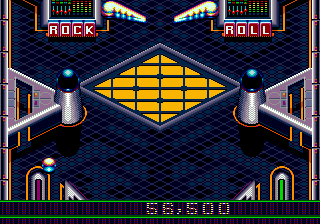
In Twisted Flipper, you control a standard pinball table using the left and right flippers. The goal is to launch a ball and keep it in play using the flippers, aiming to hit bumpers, targets, ramps, and other scoring elements. The D-Pad may also be used to nudge the table, though this depends on the build.
Your first action is to press Start to begin, then press X (or the mapped A button) to plunge the ball into the playing field. Use the left flipper (mapped to E or arrow keys? Actually typical emulator mapping: left flipper is left control? But here we have no explicit flipper mapping; the controls listed are generic emulator keys. In many Genesis pinball games, the flippers are A and B or B and C. Since mapping shows X = A button, S = B button, these are likely the flippers. So suggest: Press X (A) for left flipper, S (B) for right flipper. But to be safe, keep it generic: use the assigned buttons as flippers. The core loop is to keep the ball alive, rack up points, and try to achieve the high score.
Since this is a beta, some mechanics may be incomplete or not fully functional. Be aware that the game might not have a save feature or extensive options. The table design appears typical of digital pinball of the time: multiple lanes, targets, and a central scoring area. Experiment with nudge timing to influence the ball's trajectory.
CONTROLS
Controls
- Arrow Keys: D-Pad / Movement
- X: A button
- S: B button
- Z: C button
- A: X button (6-button pad)
- Q: Y button (6-button pad)
- E: Z button (6-button pad)
- Enter: Start / Mode
Twisted Flipper FAQ
What makes Twisted Flipper stand out among SEGA Genesis titles of its era?
Twisted Flipper is notable mainly because it exists only as a beta build, offering a rare look at an unfinished pinball game from the Genesis library. Its release type makes it a curiosity for collectors and those interested in game development history rather than a polished retail experience.
Does Twisted Flipper have a multiplayer or co-op mode?
There is no documented evidence of multiplayer or co-op support in this beta version. Pinball games on the Genesis typically focused on single-player high-score chasing, and this build appears to follow that convention.
Who developed Twisted Flipper?
The developer of Twisted Flipper is not widely documented in available sources. No specific studio or individual is credited in the beta materials, so the information remains unknown.
You may also like
All SEGA Genesis games

GAME INFO
- Platform
- SEGA Genesis
- Genre
- Arcade
- Players
- 1
- Region
- USA
- Version
- Beta
COMMENTS (0)
No comments yet. Be the first to share your thoughts.