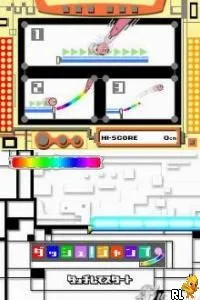
Touch! Kirby (Japan)
Touch! Kirby (Japan) on NDS
Touch! Kirby is a unique title for the Nintendo DS, released exclusively in Japan. Developed by HAL Laboratory, this game falls under the puzzle genre, utilizing the DS's touchscreen capabilities in innovative ways. While it's not a mainstream title like many Kirby games, it showcases the creative potential of the platform during its era.
In Touch! Kirby, players guide Kirby through various stages using the stylus to interact with the environment and solve puzzles. The game emphasizes touch-based mechanics, allowing players to draw, tap, and swipe to manipulate objects and enemies. This gameplay style is quite distinct compared to traditional Kirby platformers, making it a fresh experience for fans of the franchise.
This title is worth exploring for those interested in the evolution of gameplay mechanics on handheld consoles. Its reliance on touch controls offers a different approach to puzzle-solving compared to contemporaries. Although it may not have the depth of some other Kirby titles, it serves as a charming example of how developers experimented with the DS hardware, making it a delightful, albeit niche, addition to any retro gaming library.
How to Play Touch! Kirby (Japan) Online
Getting started in Touch! Kirby involves navigating through its various levels using the stylus for touch interactions. Players will first encounter simple puzzles that introduce the core mechanics. As you progress, you will need to employ more complex strategies to manipulate the environment and defeat enemies, leading to a satisfying gameplay loop.
Since this game is exclusively in Japanese, players should be prepared for the language barrier. Familiarizing yourself with basic navigation and the layout of the menus can help ease the experience. Focus on observing the visual cues in the game, as they often provide hints for puzzle solutions and the actions required to advance.
Touch! Kirby (Japan) Keyboard Controls
Controls
- Arrow Keys — D-Pad / Movement
- X — A button
- S — B button
- Z — Y button
- A — X button
- Q — L shoulder
- E — R shoulder
- Enter — Start
- V — Select

Comments (0)