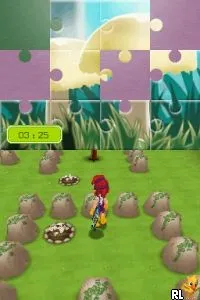
Play Gardens (Europe) (En,Fr,De,Es,It,Nl)
Inside Play Gardens (Europe) (En,Fr,De,Es,It,Nl)
Play Gardens (Europe) (En,Fr,De,Es,It,Nl) is a title for the Nintendo DS that falls under the casual simulation genre. This game was released in Europe, but specific details about the developer and publisher are not widely documented. It is recognized as an official release that allows players to engage in a light-hearted gardening experience, typical of the DS platform era where casual and family-friendly games thrived.
In Play Gardens, players take on the role of a gardener, focusing on planting, nurturing, and growing various plants in a virtual environment. The gameplay revolves around managing resources, choosing the right plants for the seasons, and maintaining the garden's aesthetics. Players can interact with different gardening tools and elements, making strategic choices to create a thriving garden space. The mechanics are straightforward, appealing to both younger audiences and those looking for a relaxing gaming experience.
This title is worth exploring for fans of simulation games, especially those who enjoy gardening themes. While it may not be as complex or expansive as some other simulation titles, it offers a charming escape and a chance to unwind. Compared to similar games from its time, Play Gardens provides a unique blend of simplicity and enjoyment, making it a nice addition to any DS library, particularly for casual gamers seeking something light and engaging.
How to Play Play Gardens (Europe) (En,Fr,De,Es,It,Nl) Online
To get started in Play Gardens, first familiarize yourself with the controls. Once you’re ready, begin by selecting a plot of land to cultivate. The core loop involves planting seeds, watering them, and watching them grow over time. You’ll need to manage your resources effectively, ensuring your plants thrive while also keeping the garden visually appealing.
Play Gardens (Europe) (En,Fr,De,Es,It,Nl) Keyboard Controls
Controls
- Arrow Keys — D-Pad / Movement
- X — A button
- S — B button
- Z — Y button
- A — X button
- Q — L shoulder
- E — R shoulder
- Enter — Start
- V — Select
Comments (0)